
Following in Grid Monitor
What Can I Follow?
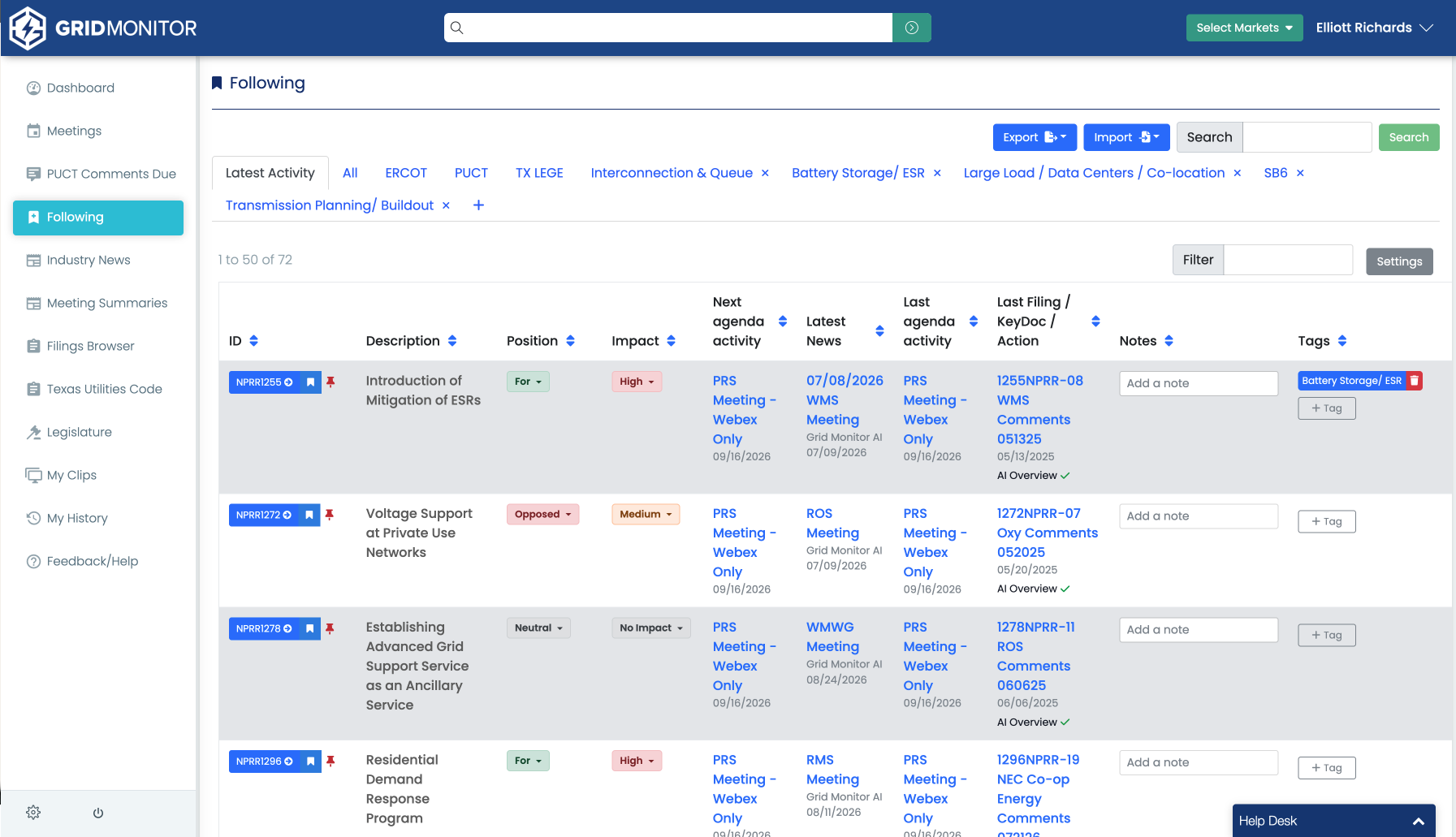
Throughout Grid Monitor, supported items include a Follow control. Depending on your subscription and market access, you may be able to Follow items such as:
- ERCOT revision requests and other supported controls
- PUCT projects and dockets
- Texas legislation
- SPP revision requests and supported controls
- Other supported regulatory and market items
How to Follow an Item
- Locate or open the item in Grid Monitor.
- Select its Follow flag or ribbon.
- Open Following from the main navigation to see the item in your workspace.
To stop tracking an item, select the Follow control again to return it to the unfollowed state.
Use Following as a Working List
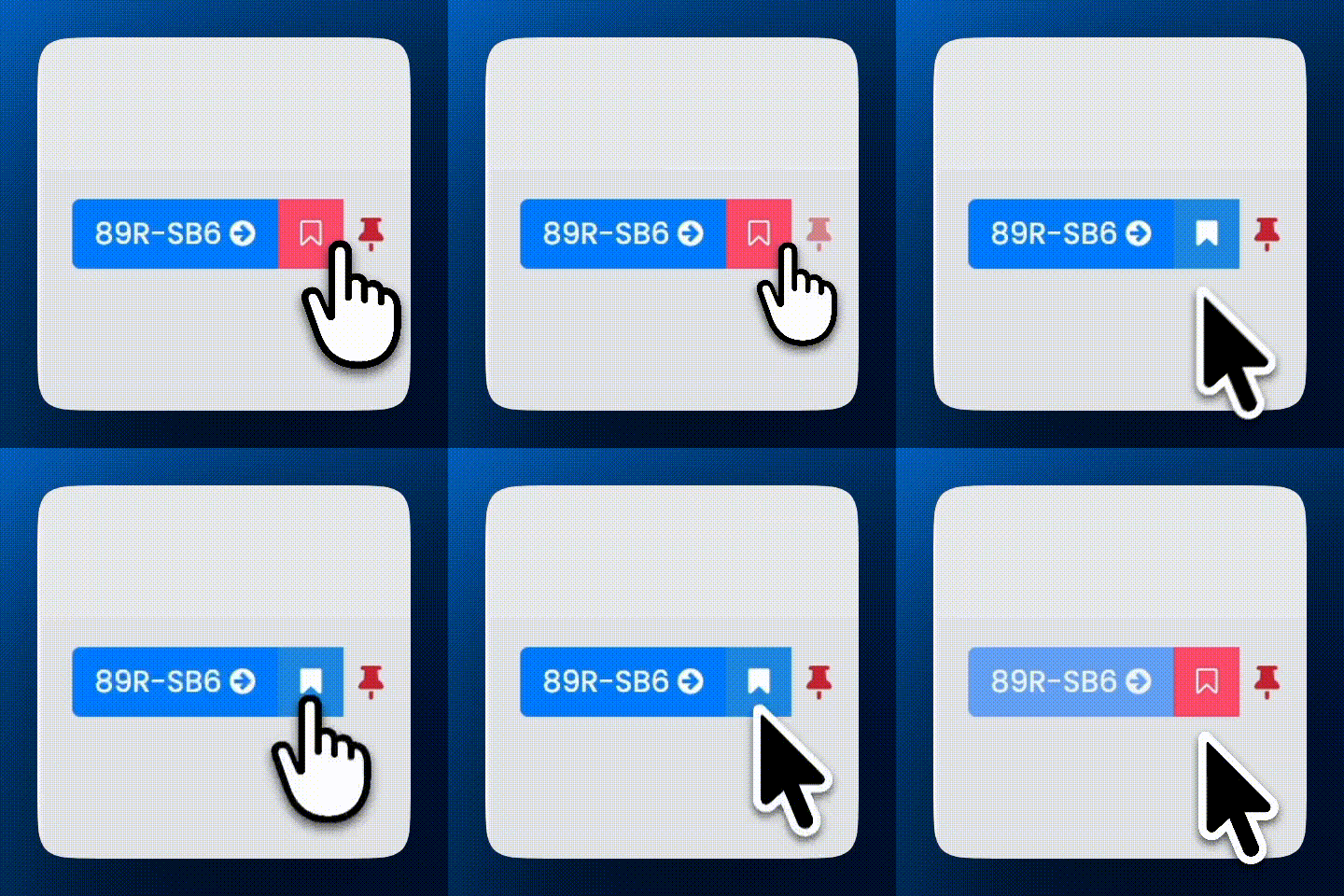
Following is more than a bookmark list. The table is designed to help you see activity connected to the items you care about and move directly into the source material.
Depending on the item and your table configuration, you may see fields such as next agenda activity, latest news, last agenda activity, the most recent filing, KeyDoc, or action, notes, tags, status, and other item details.
Organize Items with Tags
Create custom tags to group items by topic, project, client, technology, internal workstream, or any other structure that makes sense for your workflow.
- Large Load
- Transmission
- Storage
- Reliability
- Legislative Priorities
- Client Projects
Use tag views or filters to quickly narrow Following to a specific group.
Add Notes and Pin Priorities
Use notes to record why an item matters, what your team needs to do next, a client concern, an upcoming milestone, or context you do not want to lose. Pin the items that require frequent attention so your highest-priority work is easier to return to.
See in the image below, NPRR1255 in the first row is pinned as indicated by the BLUE Pin color. This will always keep it at the top of your Following, even when other items have had a more recent activity associated with it.
Also see that NPRR1255 is Tagged with Battery Storage/ESR, AND contains text in its note field.

Customize Your View
Use the available tabs, search, filters, and Settings controls to focus the Following table on the information you need. You can configure columns and move between venue-specific or custom tag views as available.
Open Activity Without Starting Over
When a followed item shows recent meeting activity, a filing, KeyDoc, news item, or other linked source, open it directly from Following. This makes Following a practical starting point for daily regulatory review.
Export and Import Following
Use Export when you need your followed-item list outside Grid Monitor for a spreadsheet, report, or internal tracker. Import can be used for supported watch-list workflows when you need to add or manage a larger set of items.
Following vs. Monitoring
Following: I know the specific item I want to track. Monitoring: I want Grid Monitor to watch for a topic, organization, or phrase wherever it appears.
A strong workflow uses both. Follow the known docket, revision request, or bill, and Monitor the broader terms that could reveal related activity elsewhere.
Example Workflow
- Follow the ERCOT revision request tied to an issue.
- Follow any related PUCT project or Texas bill.
- Add the items to one custom tag.
- Pin the items requiring immediate attention.
- Add notes for internal context or next steps.
- Create Monitoring terms for related keywords so Grid Monitor can surface activity outside the items you already Follow.
TIP: If you find yourself repeatedly searching for the same docket, revision request, bill, or control, Follow it.