
Organize Following with Tags, Notes, and Pins
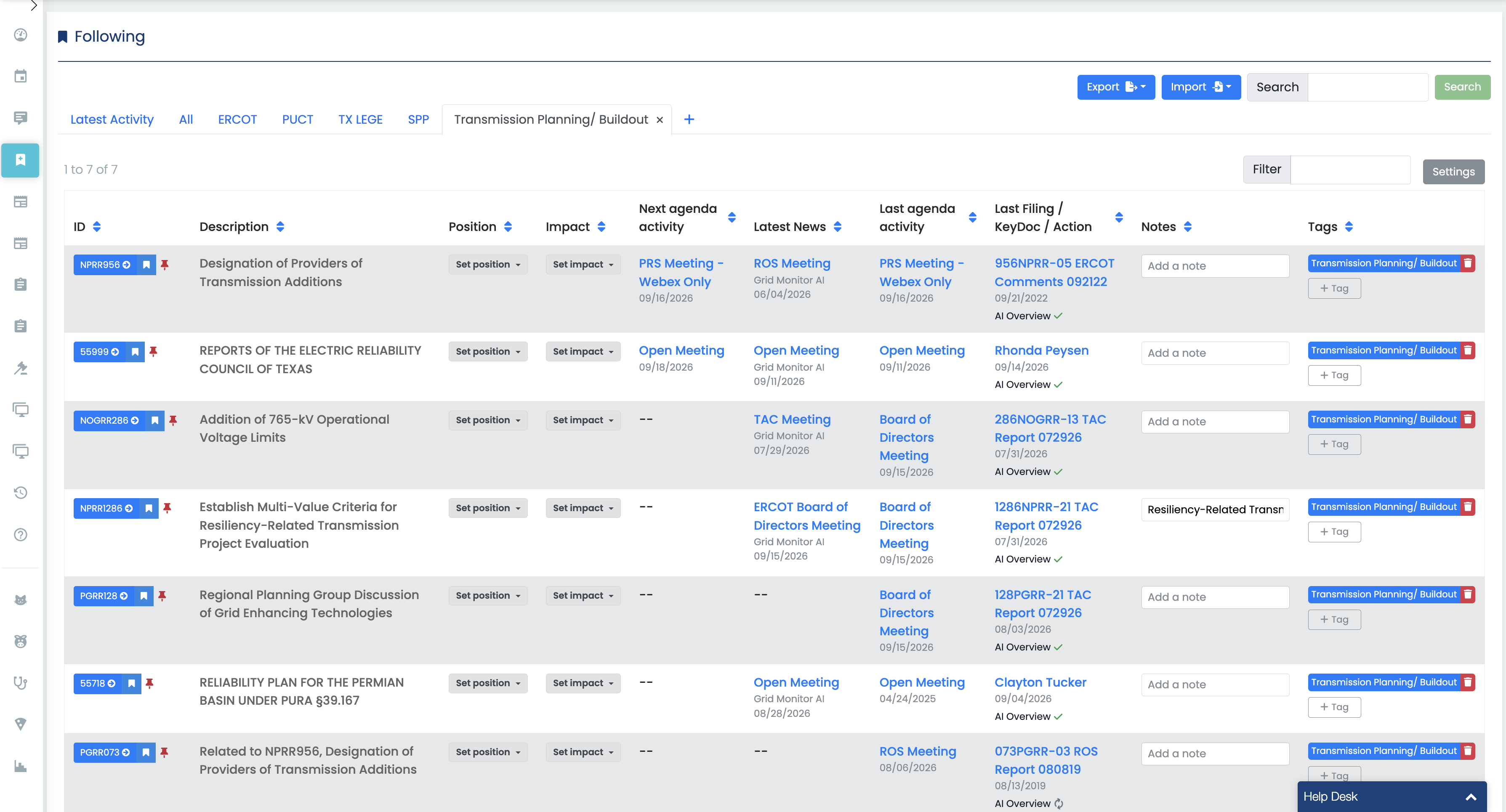
Use tags to create your own groups
Tags let you group unrelated item types under one topic. For example, a single "Large Load" tag could contain an ERCOT revision request, a PUCT project, and a Texas bill.
- Open Following.
- Locate the item you want to organize.
- Add an existing or create a new custom tag using the available tag control.
Tag List
- Repeat for other related items.
- Use the tag view or filter to see only that group.
Add notes for context
Use notes for information you want to keep next to the item, such as why it matters, a client request, your organization's position, an upcoming milestone, or a next action.
- Client asked for an update after the next workshop.
- Watch for changes to the security requirement.
- High priority before the next board meeting.
- Compare the next filing with the current proposal.
ADD Notes GIF HERE
Pin the items you check most often
Pin high-priority items so they stay at the top of Following.
Following works by keeping items with activity (A filing, a news or summary mention, an agenda placement) at the top.
Pins are most useful for keeping important items visible that may be dormant for some time.
TIP: Use tags for structure, notes for context, and pins for priority. Keeping those jobs separate makes Following easier to scan.